Table of contents
- Virtualbox installation
- Installing Virtualbox on Windows
- Installing VirtualBox on OS X
- Installing VirtualBox on Ubuntu
- Virtualbox Tutorial
- Uninstalling VirtualBox OS X
- Installing VirtualBox Beta OS X
Virtualbox installation
start by going to VirtualBox press download and select the download for your system
VirtualBox 6.1.14 platform packages
Installing Virtualbox on Windows
VirtualBox Download
Press next choose install location and press next yes and then install press yes on the popup
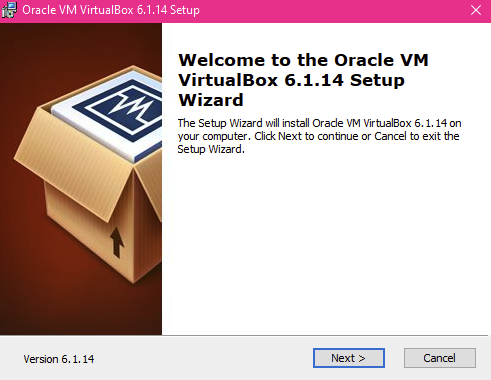
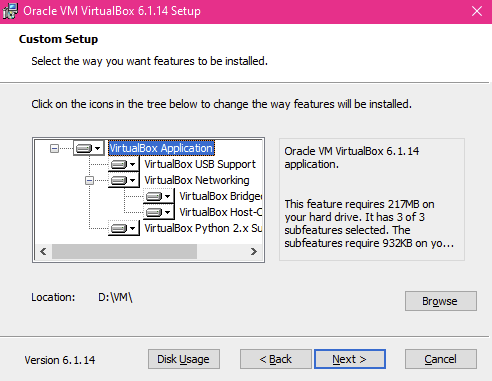
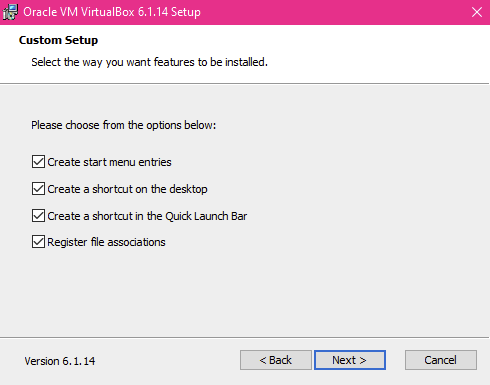
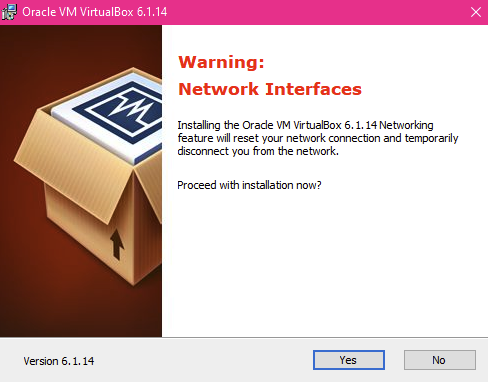
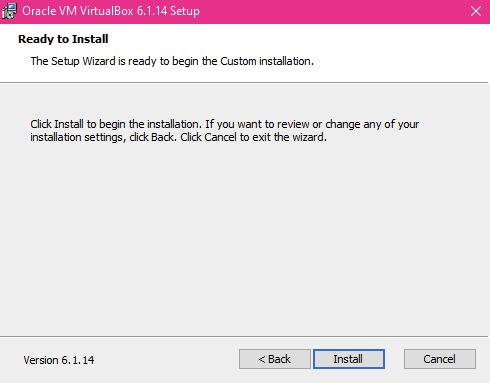
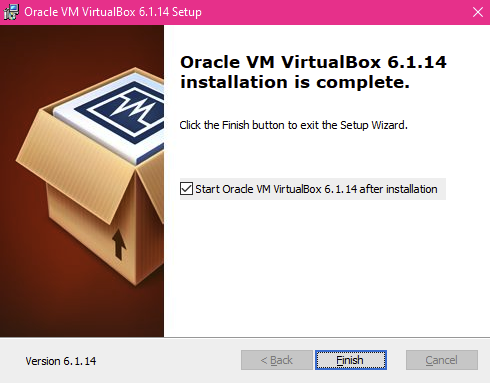
Press finish and then the program should launch by itself
Installing VirtualBox on OS X
VirtualBox download
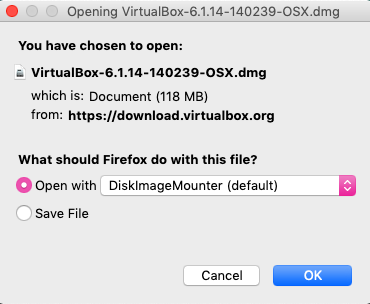
Open with DiskImageMounter and double click VirtualBox.pkg
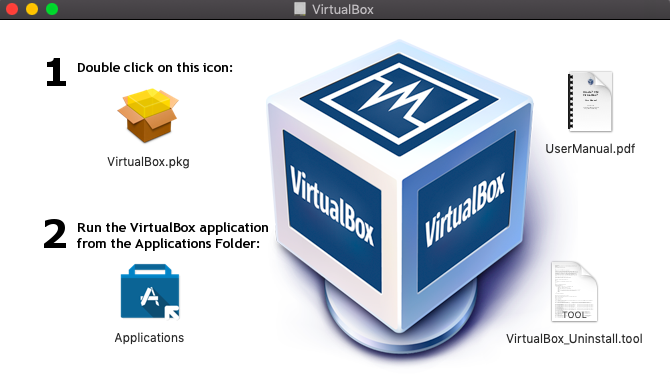
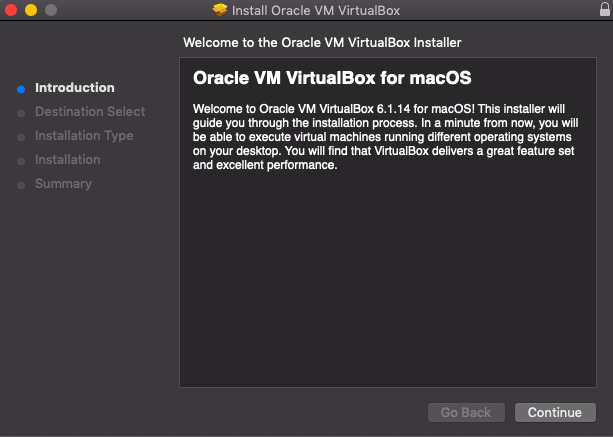
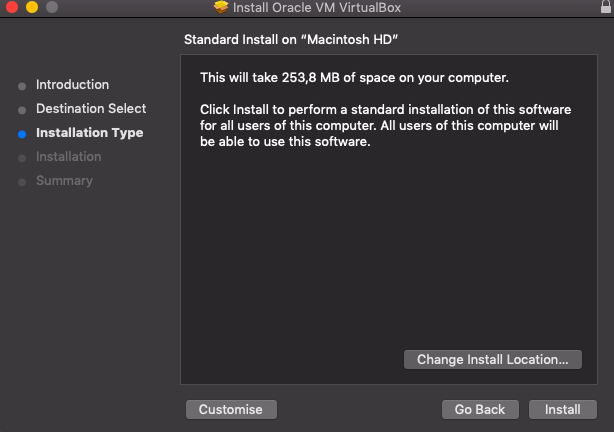
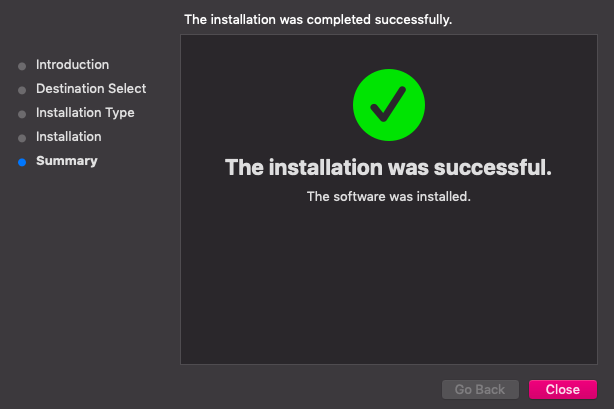
press continue and then install, in the popup type in your password to confirm installation of program. you should then see the installation was successful
Installing VirtualBox on Ubuntu
Press Ctrl-Alt-T to open terminal and enter the following:
sudo apt-get update
sudo apt-get install virtualbox
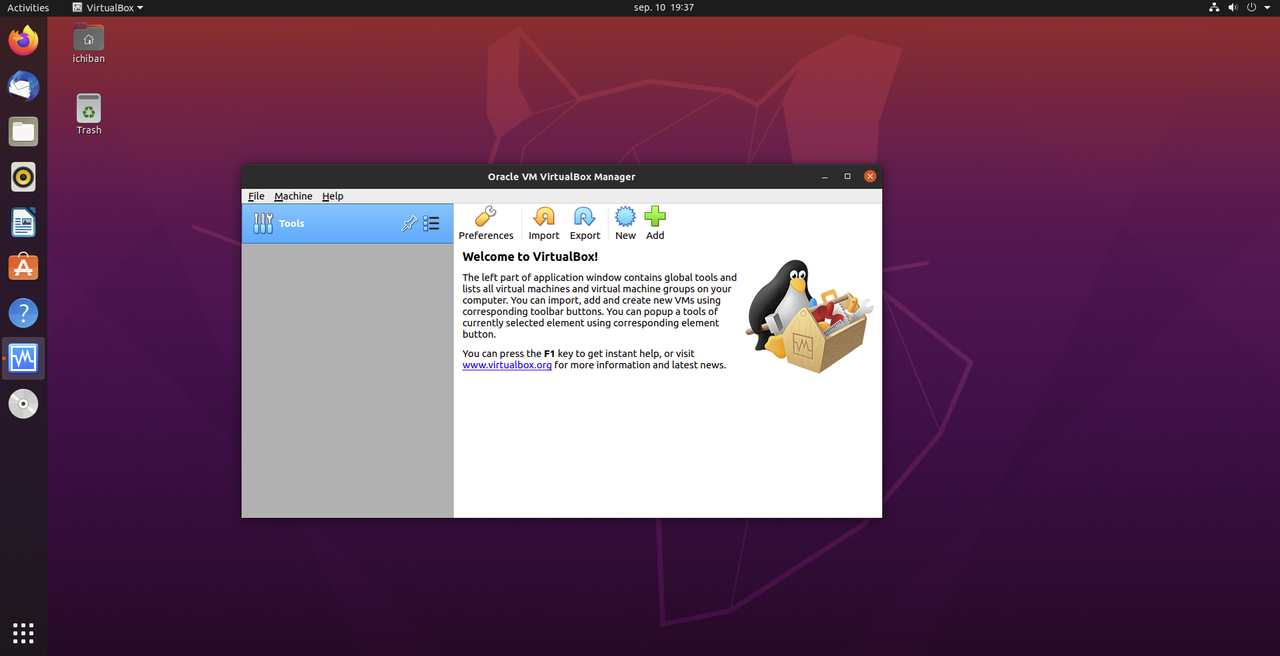
Virtualbox Tutorial
Tutorial for setup and use of virtualbox school project
To get started head over to VirtualBox and download the latest realese for your operating system. (Windows/OS X/Linux)
When you are done installing VirtualBox for your system you open the program and press new.
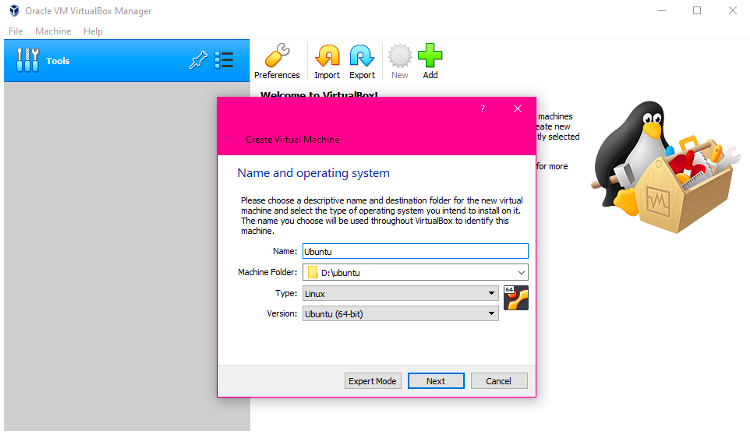
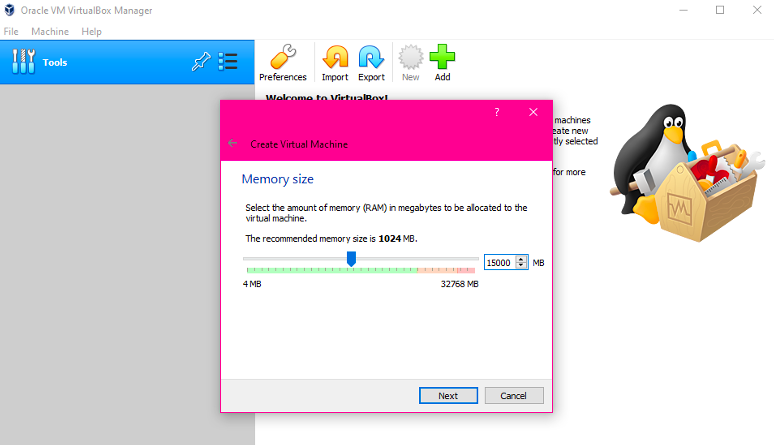
After you press next you chooce the ammaount of ram, 4000mb will be more than enough.
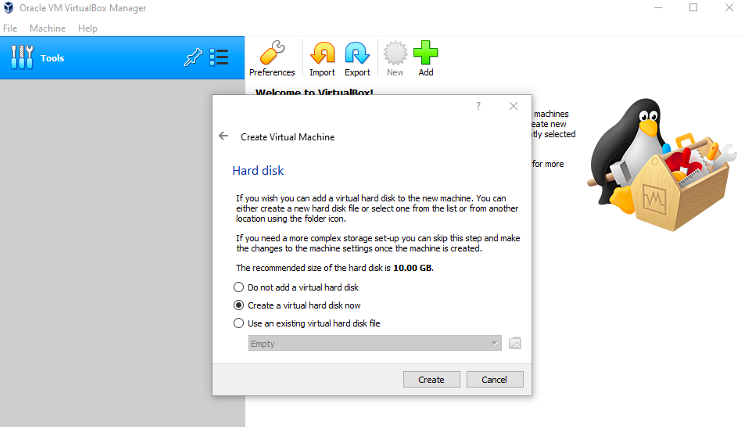
Press next and then select create a virtual hard disk now.
Select VDI (VirtualBox Disk Image)
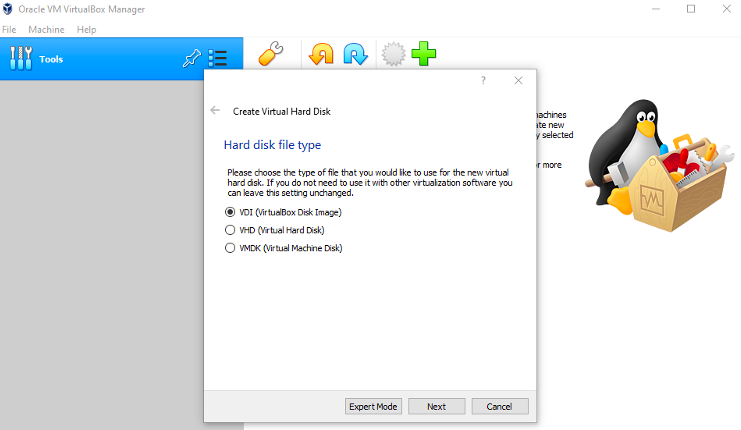
Then you press next and select Dynamically Allocated
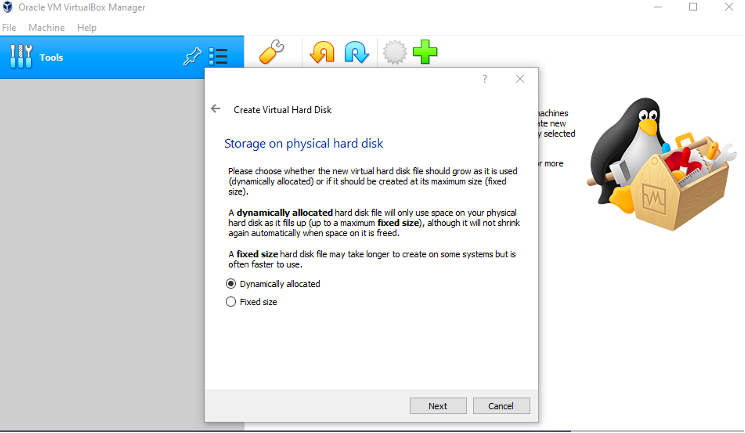
You can now select the ammount of storage you want to allocate to the virtual machine, since the virtual machine has storage dynamically allocated it will only use the ammount of space you selected when you use it. That means if you select 20GB that is a max limit and the machine itself will use less than 20GB space untill you fill it up.
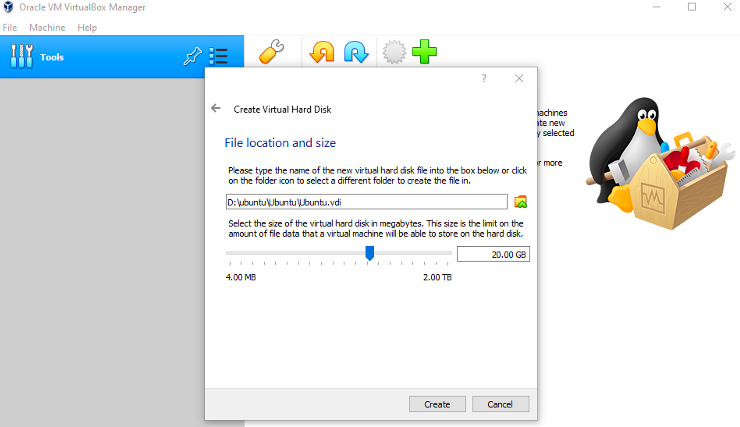
After you press create you select settings general advanced and put shared clipboard to bidirectional so that you can copy and paste stuff from your pc to the virtual computer and the other way around.
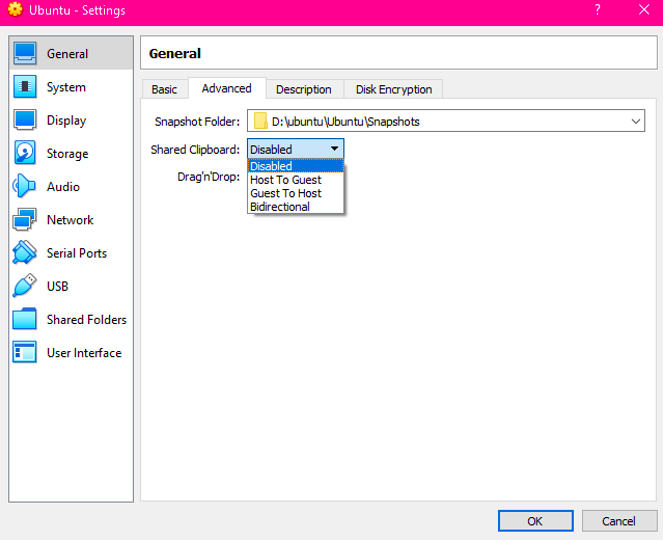
Then go to system and set CPU to 2.
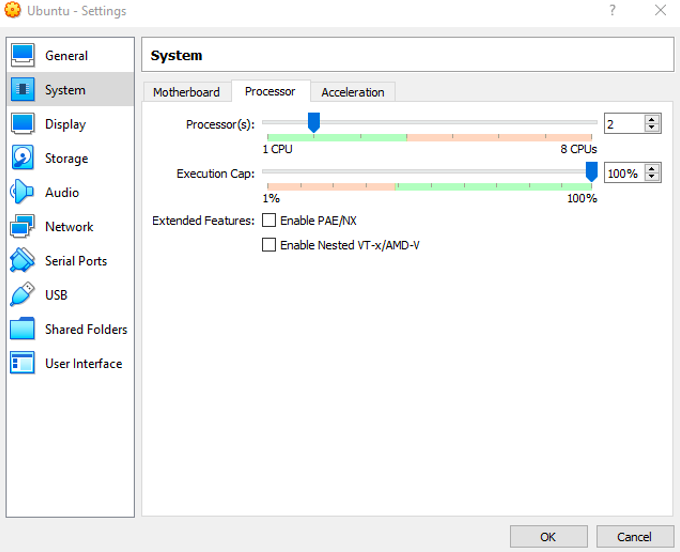
Press ok and then start
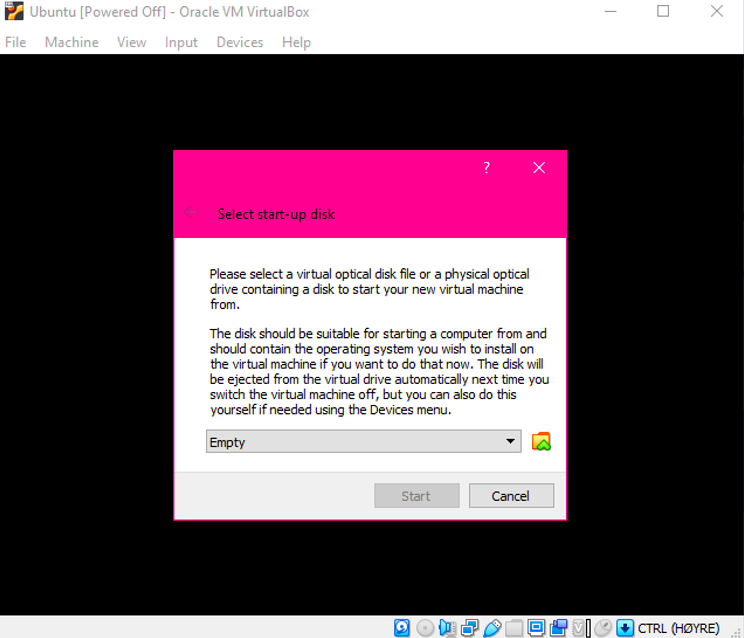
Press the small folder icon and choose add then select your iso file (Im gonna use Ubuntu for this but it can be any operating system) after you choose your iso file it should look like this:
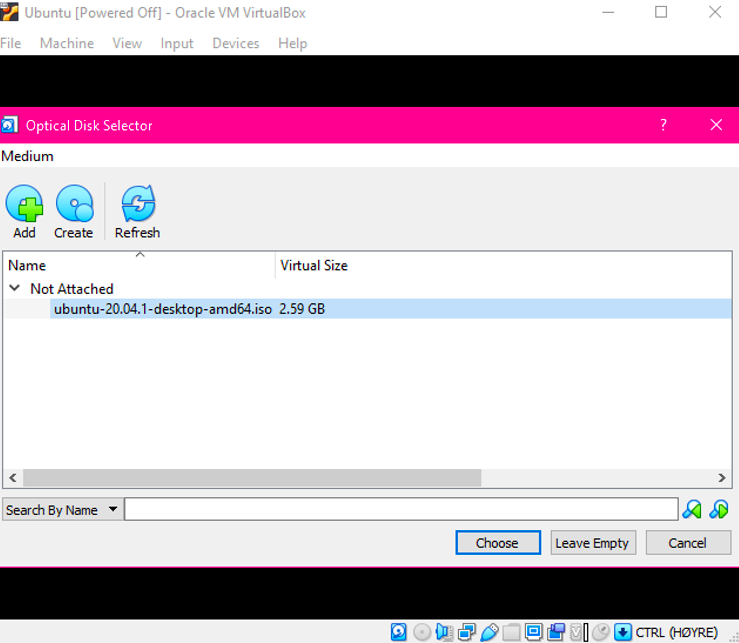
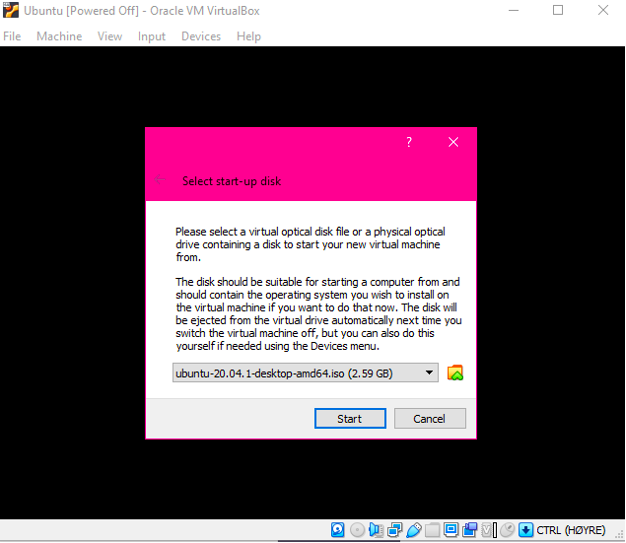
Press choose and then start
Now you choose Install Ubuntu
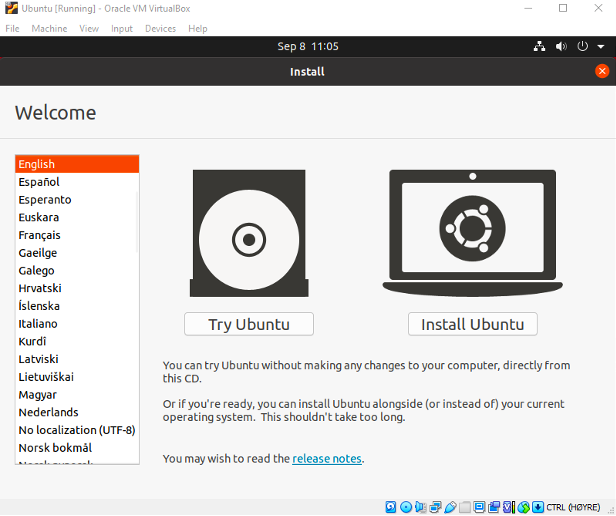
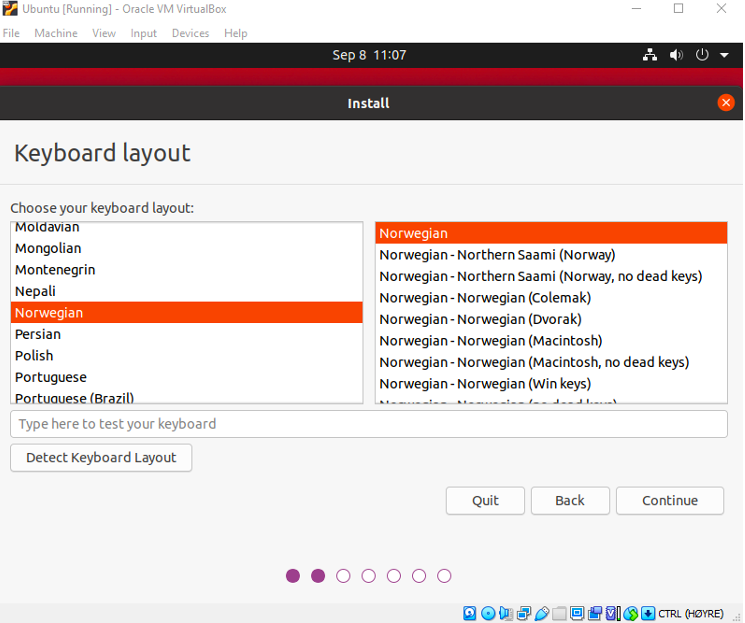
Select your language for the keyboard layout
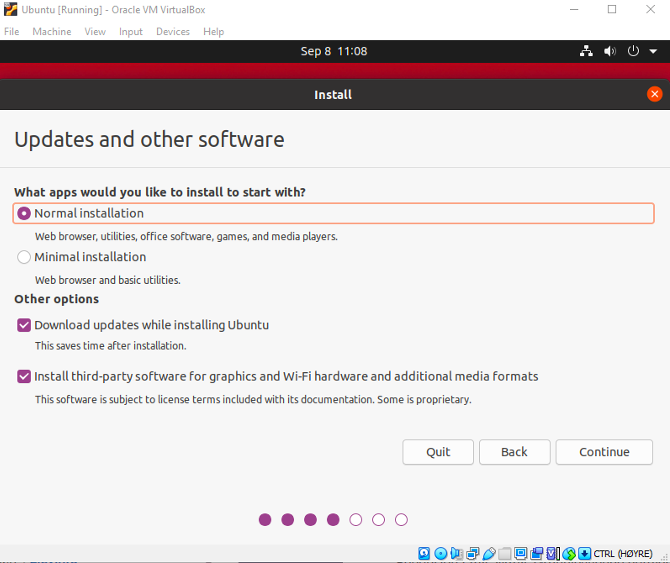
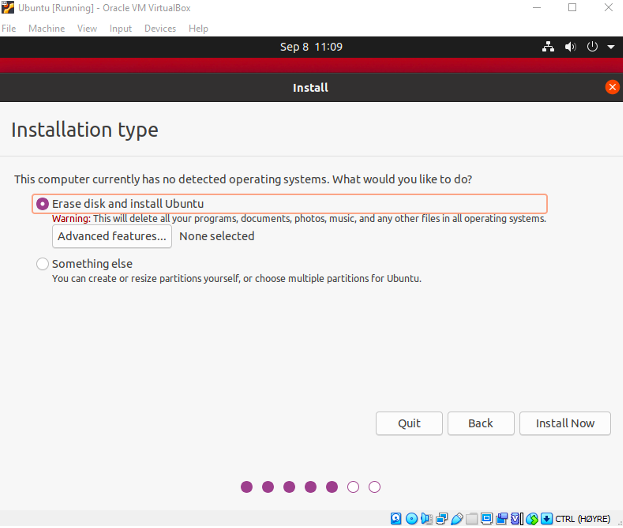
Press install now and if there is a popup press continue
Select your time zone and press continue
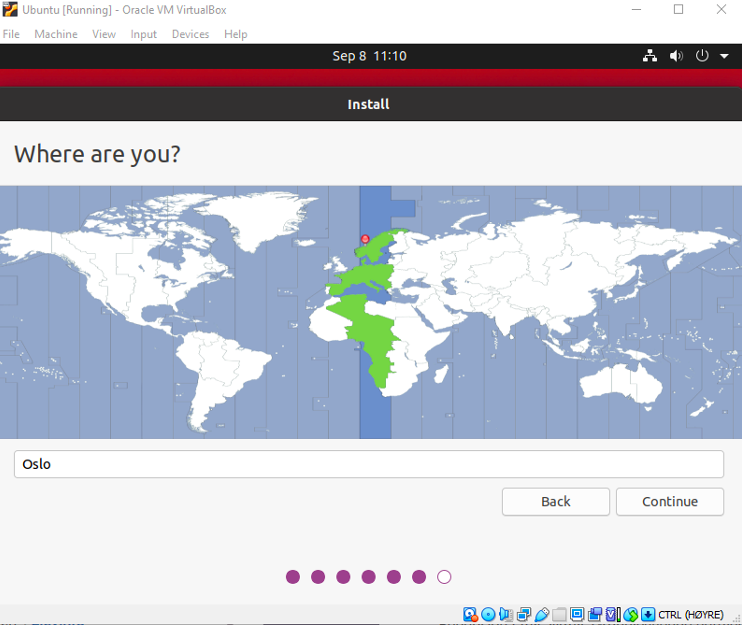
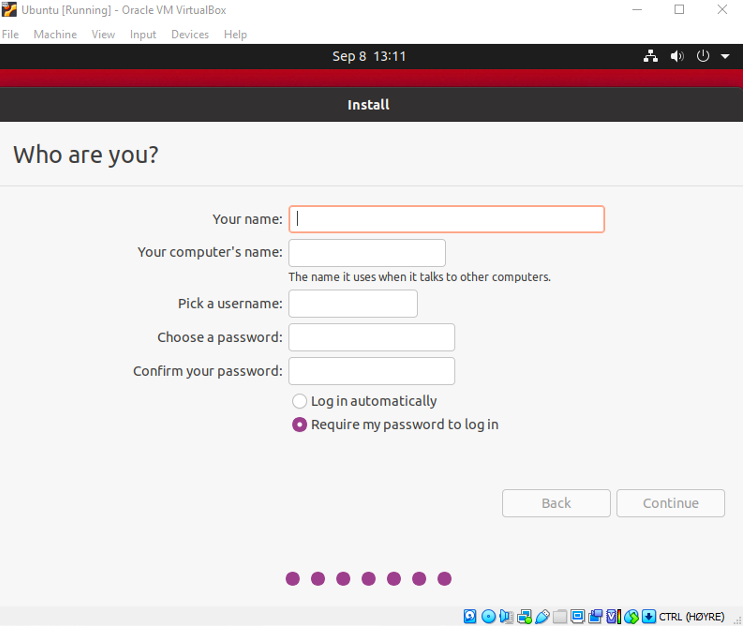
Now you just fill in your name choose the computers name and the name of your user select a password and press continue
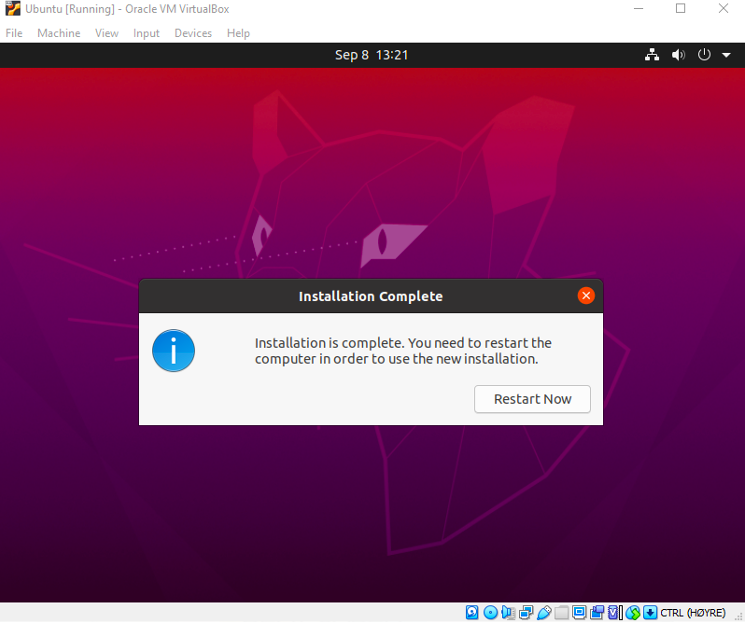
Now you just wait for the installation to finish and press restart now
Uninstalling VirtualBox OS X
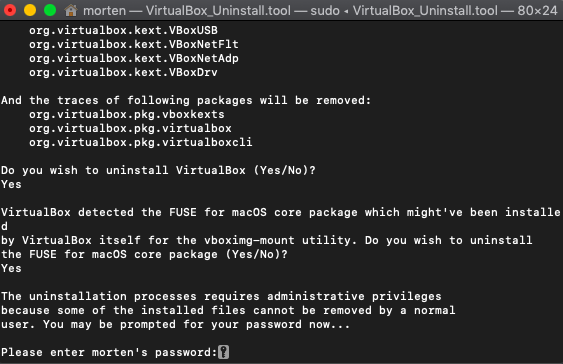
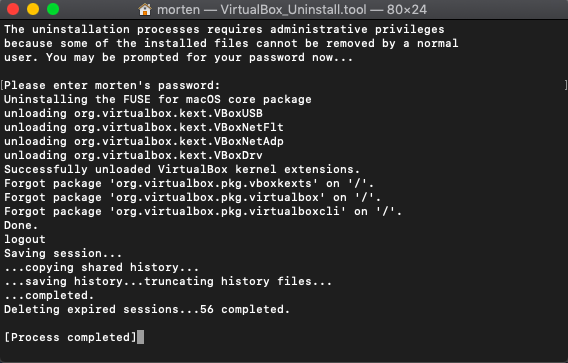
There is a uninstallation tool included in the VirtualBox.dmg found here
You want to right click Virtualbox_Uninstall.tool and press Open
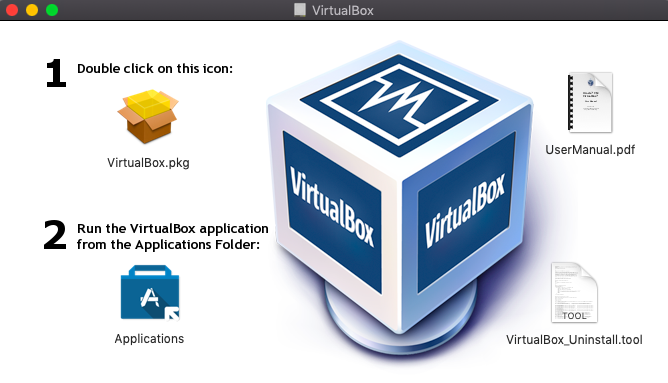
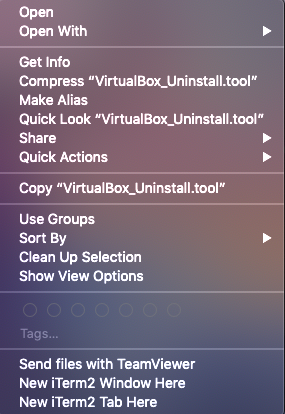
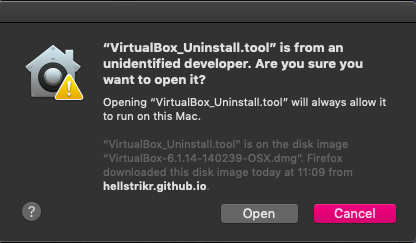
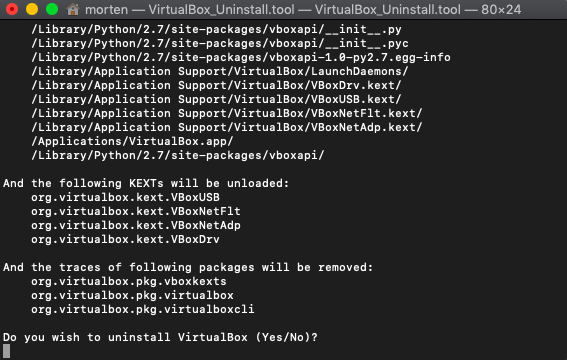
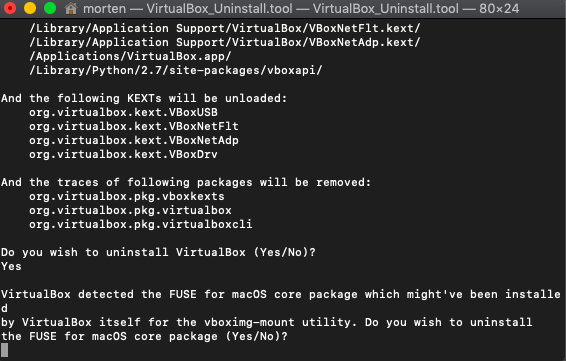
You want to select Open on the popup and then type Yes twice in the terminal window that opened followed by your admin password now you just wait a little while and it should say Process completed
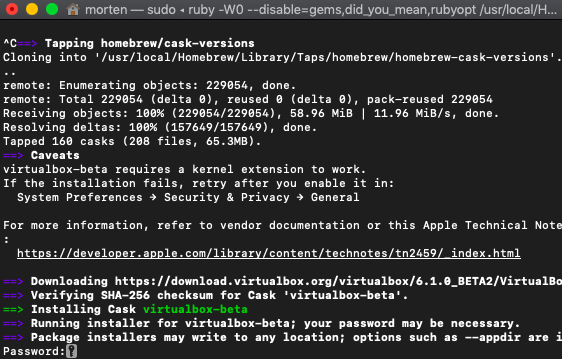
Installing VirtualBox Beta OS X
start by installing Homebrew if you dont already have it, open the terminal and run the following command
/bin/bash -c "$(curl -fsSL https://raw.githubusercontent.com/Homebrew/install/master/install.sh)"
When you have Homebrew up and running you use the following 2 commands
brew cask install homebrew/cask-versions/virtualbox-beta
brew cask install homebrew/cask-versions/virtualbox-extension-pack-beta